
Mistakes to Avoid When Livestreaming an Event: A Practical Checklist
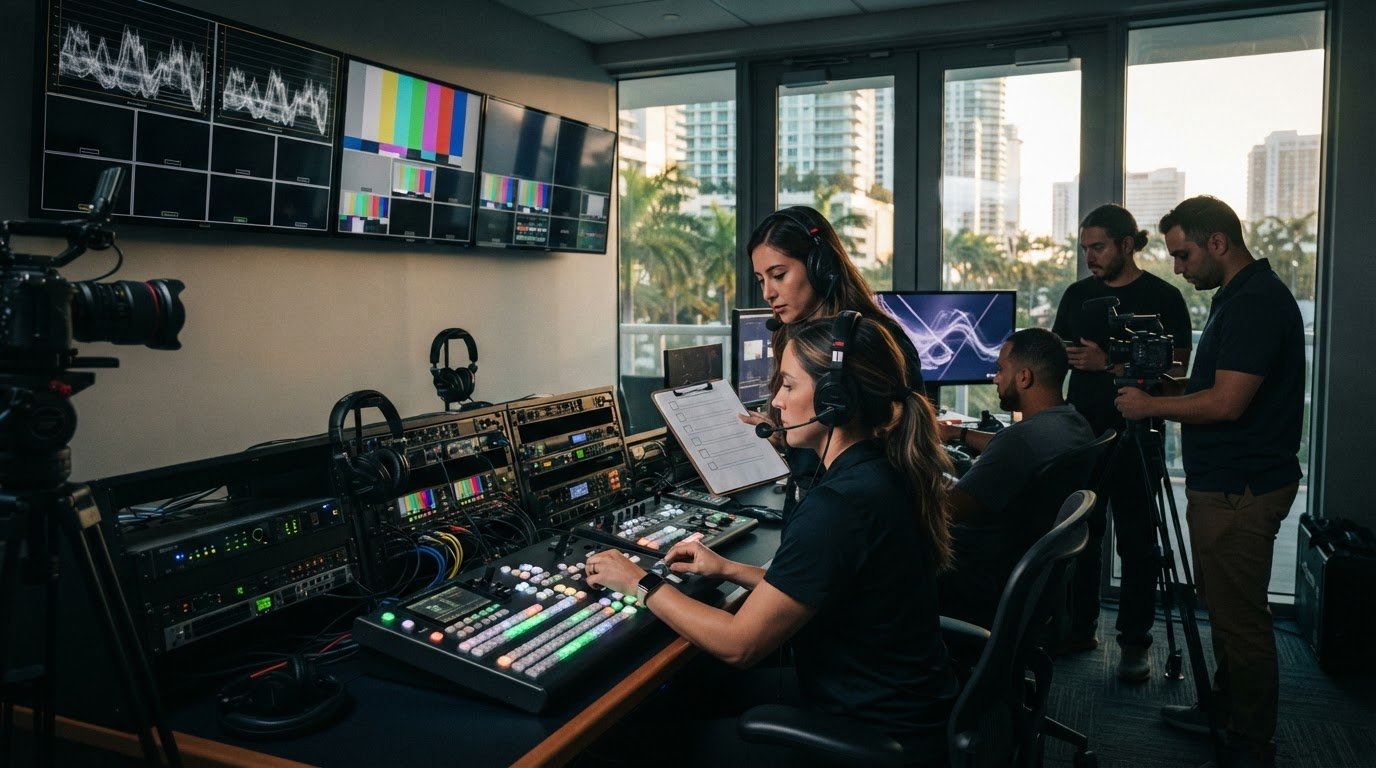
Most livestream failures begin before the cameras roll. The mistakes to avoid when livestreaming an event often come down to planning gaps: an untested connection, unclear crew roles, or an access link that doesn’t protect the event’s privacy. These problems can disrupt important moments and leave both in-person and remote audiences with a poor experience.
A successful stream takes more than working cameras. It depends on coordinated planning, reliable execution, and clear decisions about what to do if something goes wrong. This checklist covers the tests, role assignments, access controls, and backup plans that help catch problems before viewers do.
Whether you’re planning a corporate broadcast in Miami, Broward, West Palm Beach, Fort Lauderdale, North Miami, Fort Myers, or Naples, use these steps to shape a livestream around the event and its audience.
Key Takeaways
- Plan responsibilities and technical requirements early so small oversights don’t compound on event day.
- Test the venue connection, audio, cameras, encoding, and viewer playback in sequence. Download speed alone can’t confirm stream reliability.
- Assign clear ownership for production cues, technical monitoring, hosting, and audience support to keep the live show coordinated.
- Rehearse the full program and assign backup actions for common disruptions, including connection, audio, power, platform, and timing issues.
- The mistakes to avoid when livestreaming an event depend on its complexity. Compare a small-team setup with coordinated production support for high-stakes events.
Mistakes to Avoid When Livestreaming an Event Start Before Event Day
An important event has two audiences to serve: people in the room and people joining remotely. If planning is rushed, small oversights can stack up. Remote attendees may not know how to join, speakers may be unsure where to look, or no one may be assigned to answer audience questions. These disruptions are easier to prevent when decisions are made early enough to act on them.
Start by defining what the remote audience needs from the event. Should viewers understand a strategy, watch a presentation, participate in a discussion, or take a specific next step? The answer shapes the format, platform, access instructions, and level of interaction. One of the first mistakes to avoid when livestreaming an event is choosing tools before clarifying those needs.
Starting without a clear audience and event objective
A presentation broadcast and an interactive hybrid event need different plans. A broadcast may prioritize a clear program and uninterrupted viewing. A hybrid event may also need time for questions, polls, or contributions from remote attendees. Decide what online participants should experience, then assign someone to make content decisions and someone to manage audience questions. Name the people responsible for each task.
Consider access needs at this stage, too. Decide whether the stream should be open or restricted, how attendees will receive access, and what support they may need to follow the program. Settling these details early helps the production plan serve both the event’s purpose and its audience.
Choosing the platform and access approach too late
Compare platform capabilities with the event’s actual requirements, including registration, privacy controls, interaction, and how attendees will watch. A platform that works for a public presentation may not suit a private corporate event. Make the decision before invitations are ready to send, so access settings and attendee instructions have time to be prepared and tested.
Walk through the attendee journey from invitation to viewing. Confirm the link, joining instructions, any registration steps, and a support contact. Have someone outside the planning team test the process. They may spot confusing wording or a missed step. For a closer look at planning a high-stakes production, explore this broadcast-quality livestreaming guide.
Early planning turns audience expectations into production decisions before they become event-day problems.
Use this pre-planning checklist before locking in the setup:
- Define the event objective and what remote attendees should understand, experience, or do.
- Choose a broadcast or interactive format, then list the audience’s access and participation needs.
- Assign owners for program decisions, speaker coordination, and online questions.
- Select a platform and access method that fit privacy, registration, and viewing requirements.
- Test the complete attendee journey, from invitation through joining, and make support instructions easy to find.
Avoid Livestream Technical Mistakes with Real-World Testing
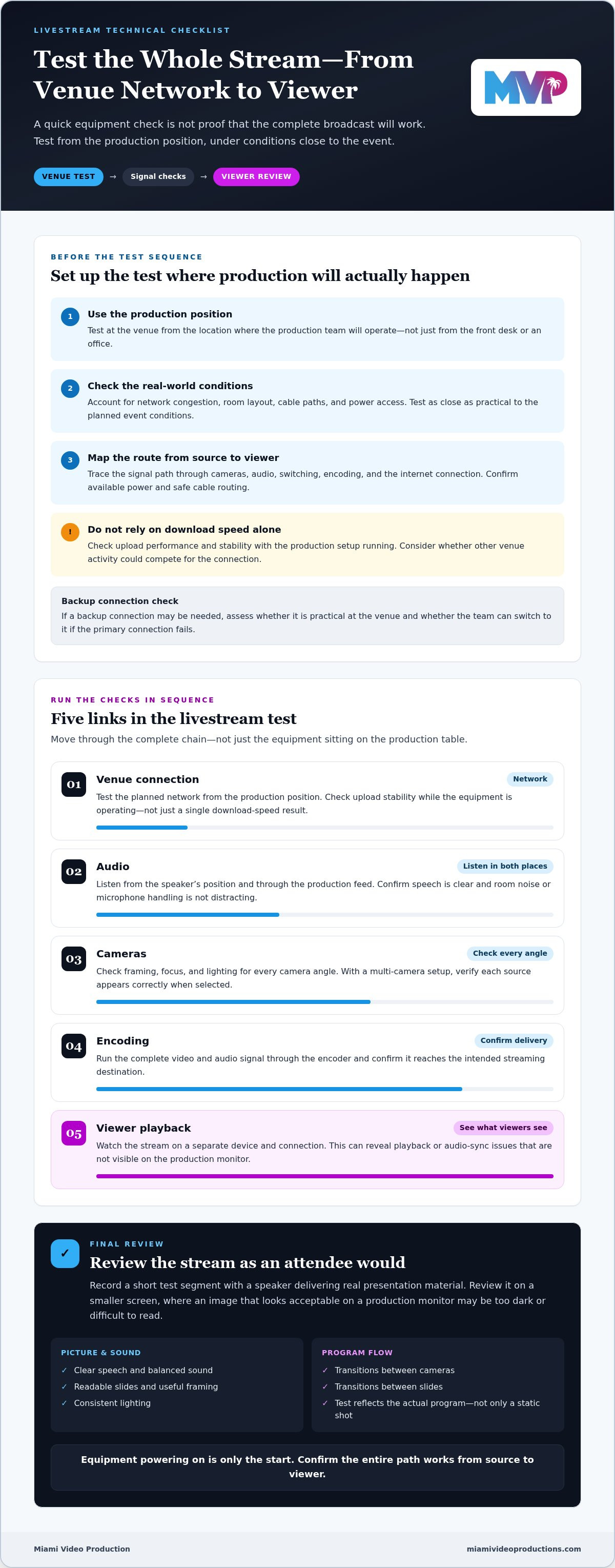
A setup that works in an office or at a venue’s front desk may behave differently from the production position. Network congestion, room layout, cable paths, and power access can all affect the stream. Treating a quick equipment check as proof that the complete broadcast will work is a common mistake.
Test at the venue, from the location where production will operate, and as close as practical to the event’s planned conditions. Download speed alone doesn’t show whether the connection can reliably send the stream. Check upload performance and stability with the production setup running, and consider whether other venue activity could compete for the connection.
Test connectivity, power, and signal paths in sequence
Before setup begins, confirm where power is available, how cables can be routed safely, and which connection production will use. Map the signal path from source to viewer, including cameras, audio, switching, encoding, and the internet connection. If a backup connection may be needed, assess whether it’s practical at the venue and whether the team can switch to it if the primary connection fails.
Follow a repeatable test sequence:
- 1. Venue connection: Test the planned network from the production position. Check upload stability while the equipment is operating, not just a single download-speed result.
- 2. Audio: Listen from the speaker’s position and through the production feed. Confirm speech is clear and room noise or microphone handling isn’t distracting.
- 3. Cameras: Check framing, focus, lighting, and every camera angle. For a multi-camera setup, verify that each source appears correctly when selected.
- 4. Encoding: Run the complete video and audio signal through the encoder and confirm it reaches the intended streaming destination.
- 5. Viewer playback: Watch the stream on a separate device and connection. This can reveal playback or audio-sync issues that aren’t visible on the production monitor.
Review the stream as an attendee would
Record a short test segment with a speaker delivering real presentation material. Review it for clear speech, balanced sound, readable slides, useful framing, and consistent lighting. A picture that looks acceptable on a production monitor may be too dark or difficult to read on a smaller screen. Check transitions between cameras and slides, too, so the test reflects the actual program rather than a static shot.
An equipment check confirms that the pieces power on. An end-to-end rehearsal confirms that the audience can follow the show. That distinction matters for conferences and other events with multiple speakers, cameras, or presentation sources. A conference livestream reliability checklist can help teams structure those technical checks.
For a high-stakes event, coordinated production support can bring technical direction, multi-camera switching, and real-time encoding into one tested workflow. Reviewing your requirements with an event livestream production team can help identify what needs to be tested before show day.
Prevent Audience, Access, and Live-Show Coordination Failures
A polished livestream depends on more than a sound cue and a working camera. During a live program, someone must keep the show moving, monitor the outgoing stream, guide speakers, and respond to remote attendees. If those responsibilities are assumed rather than assigned, chat questions can go unanswered while a speaker waits for a cue or a technical issue goes unnoticed.
Build a simple run-of-show that names an owner for each task and gives the team a clear escalation path. For example, if a speaker’s slides change at the last minute, the content owner approves the change and the technical lead updates the presentation feed. This prevents well-meaning team members from making conflicting adjustments in the moment.
Leaving the remote audience without a clear point of support
Give attendees concise joining instructions that explain how to access the stream and where to report a problem. For a private event, distribute access details only through the intended channel and use the platform’s available registration or access controls. Before the event, test those controls as an attendee, including what happens if someone uses an incorrect link or has trouble signing in.
Assign a named audience-support person to monitor incoming questions and route relevant ones to the host. That person can also flag access issues without interrupting the production team’s technical work. Clear ownership makes the remote experience feel considered, not like an afterthought.
Running the show without defined roles or communication
Keep responsibilities visible in a compact role matrix, and agree on a discreet communication method before the event. A dedicated headset, production chat, or another shared channel can carry cues without adding noise to the program. Establish who can approve a live change and how urgent issues should be escalated. Avoid unreviewed changes made simply because someone notices a possible improvement mid-show.
Producer: Owns the run-of-show, timing, and escalation decisions.
Technical lead: Monitors the outgoing stream and coordinates camera, audio, and presentation changes.
Host: Welcomes viewers, cues speakers with the agreed signals, and delivers audience-facing transitions.
Audience support: Watches attendee questions and access issues, then routes relevant items to the host or producer.
The exact staffing can vary, but every responsibility needs a clear owner. On a small production, one person may cover more than one role. Make sure those duties don’t collide at a critical moment, such as the opening or a speaker transition. For complex corporate programs, technical direction for live events can help align cues, timing, and production decisions across the team.
These coordination details are among the mistakes to avoid when livestreaming an event because they affect both what happens onstage and what viewers experience remotely. A short briefing before going live should confirm role ownership, the communication channel, the escalation path, and the process for approving changes. That gives the team a shared operating plan when the schedule shifts or an unexpected issue appears.
Use a Rehearsal and Backup Checklist to Avoid Livestream Disruptions
A backup plan is useful only if the team knows when to use it and who makes the call. Build a timeline that covers confirming event requirements, rehearsing, opening attendee access, monitoring the live program, and reviewing what happened afterward. Give each person a defined point to act rather than leaving recovery decisions to whoever notices a problem first.
Rehearse the complete event, not just individual devices
Run the program in order with presenters, slides, speaker cues, transitions, and any audience interaction. Have someone follow the stream as an attendee, using the kinds of devices and viewing locations your audience may rely on. Record open risks, assigned owners, and final decisions in a shared run-of-show so the event team is working from the same plan.
For venues in Miami and across South Florida, confirm venue access procedures and the production team’s setup arrangements ahead of time. If the event is outdoors, consider how changing conditions could affect the production position, equipment placement, and schedule. Make these checks specific to the venue rather than assuming a plan that worked indoors will transfer unchanged.
Prepare a calm, assigned response to technical issues
Set an escalation order before the event. The person monitoring an issue alerts the technical lead, who assesses the available options, while the designated decision-maker approves any program change. This keeps several people from making competing adjustments at once. Prepare a brief attendee message for a delay or access interruption, with a clear instruction about what viewers should do next.
Match each fallback to the production setup and venue. A secondary connection may be useful only if it’s available and tested. An alternate audio source or camera may help only if the team can switch to it cleanly. If the platform becomes unavailable, know who will communicate with attendees and whether an alternate destination is practical. For a late speaker, agree in advance whether the host will introduce the next segment, pause, or adjust the order.
Before the event, validate the plan. During the event, follow assigned responses and communicate changes clearly.
- Before: Confirm requirements, rehearse the full run-of-show, test attendee access, check venue arrangements, assign backup actions, and document remaining risks.
- Live: Monitor the stream, use the agreed escalation order, apply the relevant fallback, and send the prepared attendee update if access or timing changes.
- After: Review what worked, note disruptions and decisions, and update the run-of-show for future events.
The mistakes to avoid when livestreaming an event include assuming that a rehearsal guarantees a flawless broadcast. It doesn’t. Rehearsal gives the team a shared reference point for responding deliberately when conditions change. For a high-stakes event, plan your event livestream with production support that can coordinate technical direction, switching, and encoding.
When Professional Event Livestream Production Helps Prevent Mistakes
Not every livestream needs a production crew. A small, informal session with one speaker, one camera, and a limited audience may be manageable for a small team, especially when the consequences of a technical hiccup are modest. The decision changes as the show adds speakers, camera angles, audience groups, presentation materials, or timed transitions. More moving parts create more chances for tasks to compete for attention.
Match production support to the event’s stakes
Assess both the production workload and what the livestream needs to achieve. If a stream carries a corporate announcement, executive presentation, or other important business communication, a disruption could affect more than the viewing experience. Consider whether the team can monitor the stream while also cueing speakers, switching cameras, handling audience questions, and keeping the program on schedule.
A simple decision check can help:
- Lower complexity: One presenter, a straightforward format, and a small team with time to manage the stream may suit a simple setup.
- Higher complexity: Multiple speakers or cameras, frequent transitions, separate in-person and remote audiences, or sensitive business messages increase coordination demands.
- Higher stakes: If the stream supports a key business objective, consider whether the team has enough capacity to respond to production needs without losing focus on the event itself.
This isn’t a rule that every corporate event needs a large crew. It’s a way to match production support to the demands and importance of the program.
Understand what coordinated production can address
Solo operation concentrates the work in one person’s hands. That person may need to host, watch audience messages, operate the stream, and respond to technical changes at once. Coordinated production separates those responsibilities, so the person directing the show can focus on timing and decisions while the technical lead manages the signal and camera transitions.
Technical direction connects the program plan to live decisions, helping the team coordinate speaker cues, transitions, and responses to changes. Multi-camera switching lets the production move between planned viewpoints, while real-time encoding prepares the program for delivery to viewers. Together, these functions can support a more controlled, broadcast-style experience without implying that disruptions are impossible.
For organizations planning a high-stakes event in Miami, Broward, West Palm Beach, Fort Lauderdale, North Miami, Fort Myers, or Naples, broadcast-quality livestreaming is one production approach to consider. Miami Video Production creates broadcast-quality livestreams for events in South Florida, with technical direction, multi-camera switching, and real-time encoding. A discussion about the event’s speakers, format, audience, and communication goals can help align production support with the program.
The most useful question isn’t whether a crew is always necessary. It’s whether the people responsible can manage every live task without compromising the event’s purpose or the viewer experience. Matching the setup to the stakes is one of the practical mistakes to avoid when livestreaming an event.
Put Your Livestream Plan into Action
Before your next event, turn the checklist into a working brief your team can use. Name the person responsible for each decision, make the viewing experience part of the event plan, and agree on how the team will respond if the program changes. That preparation helps everyone focus on the purpose of the event instead of improvising under pressure.
Match your production approach to the audience and the stakes. A straightforward stream may call for a lean setup; a high-profile corporate event may benefit from dedicated production coordination. The right plan won’t make every uncertainty disappear, but it can help your team meet challenges with clarity and confidence. Keep the mistakes to avoid when livestreaming an event in view as you shape your next production plan.
For an important event in South Florida, discuss your event livestream production needs with Miami Video Production. The team creates broadcast-quality livestreams for events and can coordinate technical direction, multi-camera switching, and real-time encoding. Start a conversation about your event’s goals, audience, and production requirements.
Frequently Asked Questions
Is public Wi-Fi reliable enough for livestreaming an event?
Public Wi-Fi usually isn’t a dependable primary connection for an important livestream because its capacity and performance can change as other people use the network. At a Miami or Broward venue, identify the connection options for production and test the planned setup in the actual streaming location. If public Wi-Fi is the only option, assess its stability under realistic conditions and decide in advance what the team will do if performance drops.
How much upload speed do I need to livestream an event?
There isn’t one upload-speed figure that suits every event. The amount needed depends on the stream’s video settings, the number of sources, and the platform’s requirements. Check the platform guidance, then test sustained upload performance with the production setup operating rather than relying on a single speed-test result. Leave capacity for normal fluctuations and other network activity. A test from the actual venue can reveal limits that a home or office connection won’t show.
Can I livestream an event with a phone?
Yes, a phone can work for a simple, low-stakes livestream, particularly with one presenter and a steady camera position. Use a stable support, frame the speaker with enough space for natural movement, and check that the phone stays powered and doesn’t overheat during a test. An external microphone can help speech sound clearer. For a multi-speaker event or a program with frequent transitions, operating a phone while managing the show may stretch a small team.
What should I do if the livestream loses connection?
Follow the recovery steps agreed on before the event rather than having several people make changes at once. The designated lead should identify whether the issue is the venue connection, encoder, or platform, then use a tested fallback if one is available. Have the host or audience-support contact ready to post a brief update with the next step for viewers. Avoid improvising changes without an owner or leaving viewers unsure whether to wait.
Can I livestream an event with copyrighted music?
Only use copyrighted music in a livestream when you’ve secured the rights needed for that use. Both public performance rights and synchronization rights may be relevant. Permission to play a song at the venue alone may not cover its use in a video stream. Confirm that the licenses cover the livestream and any recording or replay. Platform copyright systems may also mute or restrict content that uses music without appropriate authorization.
How can I keep a corporate livestream private?
Choose an access approach suited to the sensitivity of the event. Use registration or restricted viewing controls where available, distribute joining details only to intended attendees, and avoid posting private links in public channels. Before going live, test what an invited viewer and an unauthorized viewer can access. Also review what appears on screen, including desktop notifications, meeting details, and presentation materials, so confidential information isn’t accidentally shown.
Should I record an event livestream for people who cannot attend?
Recording can give absent attendees a way to catch up, but decide how the recording will be used before the event. Tell speakers and participants what will be recorded, identify any segments that shouldn’t be shared afterward, and plan who can access the replay. Check that music and presentation materials are suitable for recorded distribution as well as live use. For a corporate event in Fort Lauderdale or Naples, a defined replay plan helps protect the intended audience and message.
